
Rules: set the category and add tags in one rule
v0.1.352 min read
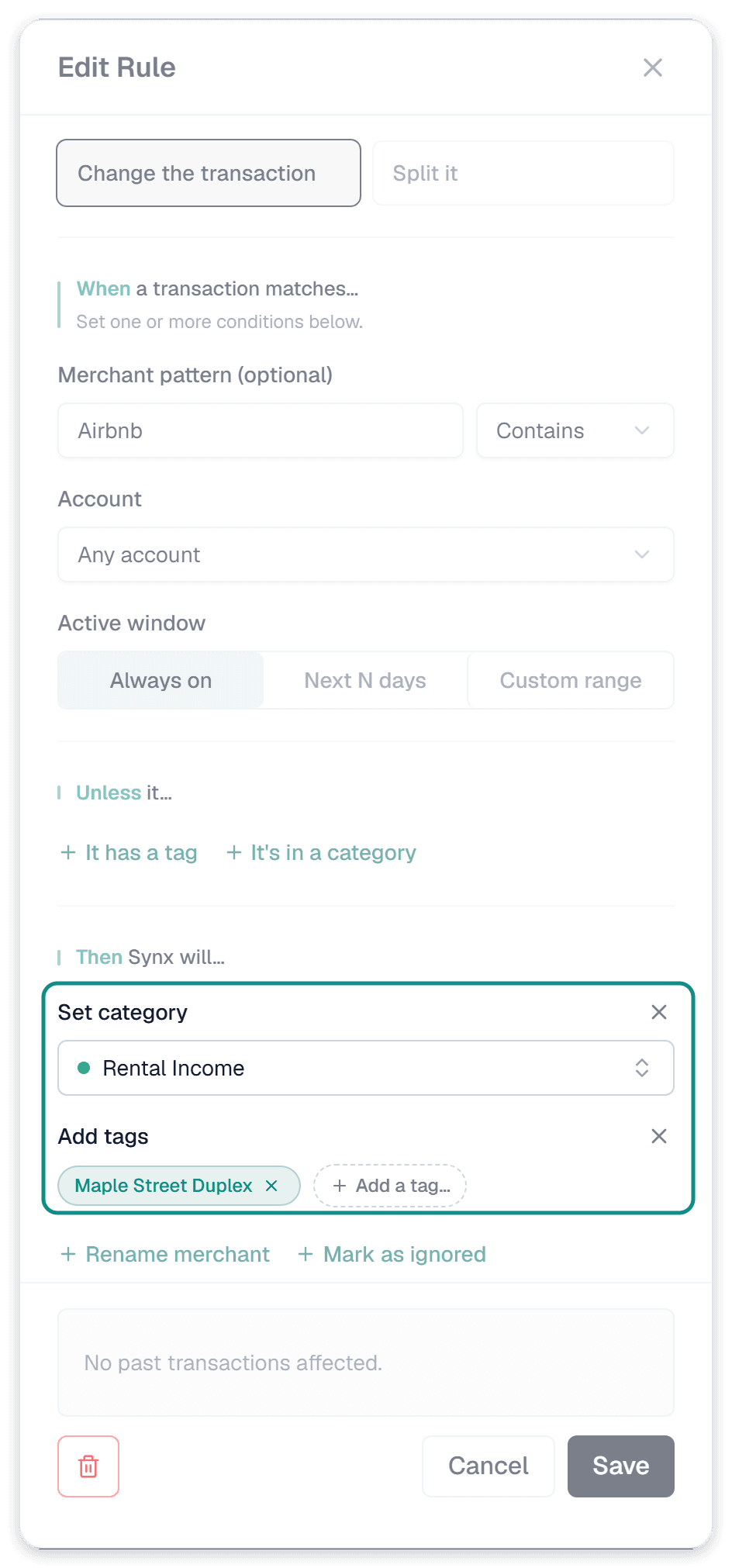
- Category and tags in one rule: a rule in Settings → Rules can now set the category and add tags to the same transaction. Before, that took two rules, one for each.
Why we built it: Two rules for one merchant drift apart. We found our own Airbnb and Booking.com rules matching different things, so some rental payments got the right category and no property tag, and others the reverse.
What you can do
- Pick what the rule does: under Then Synx will…, choose Set category, Add tags, Rename merchant or Mark as ignored. Use as many as you want. Only the ones you add show up, and the rest wait as small links.
- Add tags to a rule you already have: open any category rule and click + Add tags. A tag rule can gain a category the same way.
- Start from a transaction: when you make a rule from a transaction, it now fills in the property tag that transaction already has, along with its category.
- Read the whole rule at a glance: the rules list shows a badge for each thing a rule does, and the sentence reads as one: "set the category to Rental Income and add Maple Street Duplex."
- Apply it to past transactions: the result tells you both halves, like "set to Rental Income and tagged Maple Street Duplex."
- See which rules feed a property: a property's page now says how many rules send transactions there, with an Add rule link that starts a rule with that property's tag already filled in.
Good to know
- We merged your matching pairs: where you had a category rule and a tag rule with exactly the same conditions, we combined them into one rule for you. Nothing about which transactions they match changed.
- Pairs that don't quite match stay as two: if your two rules match slightly different things (say "Booking.com" and "Booking.com ST", or one matches exactly and the other "contains"), we left them alone, since only you know which one is right. To combine them, open the category rule, click + Add tags, pick the tags the tag rule adds, fix the merchant text if needed and save. Then delete the old tag rule.
- Split rules work as before: a rule that splits a charge still does only that.